

How to Navigate the Community Hub
The Community Hub in the Star Providers Portal is your source for engaging with peers and resources. You can register for upcoming Coffee & Community Building calls, view recordings of past meetings, and participate in discussion forums with providers and SBHP staff.
Getting Started
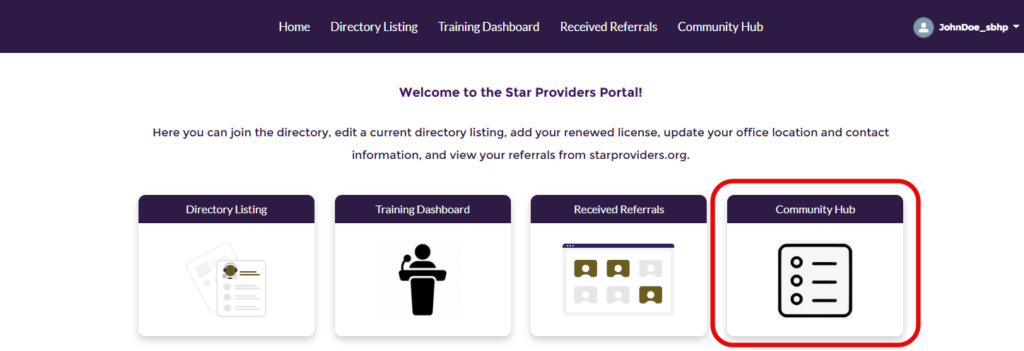
To begin, log in to the Provider Portal. From the Portal welcome page, select “Community Hub.”
Coffee & Community Building Calls
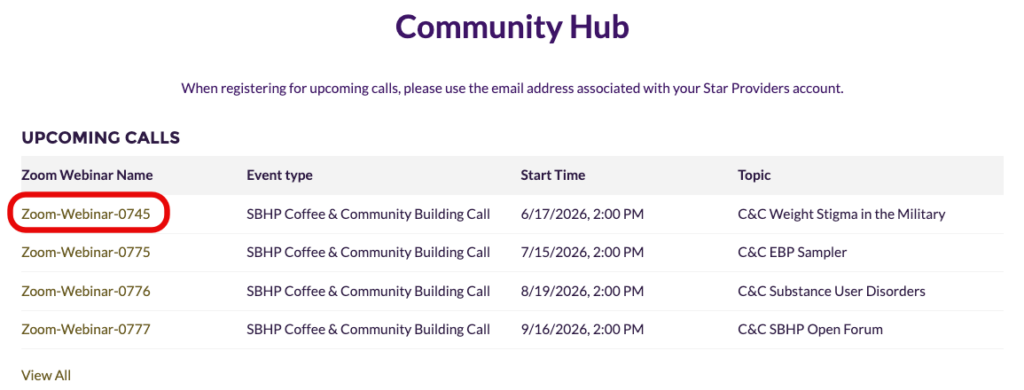
Once you have clicked on the Community Hub tab, you will see past and upcoming Coffee & Community Building calls. To register for a call, click on the Zoom-Webinar-XXXX on the left-hand side.
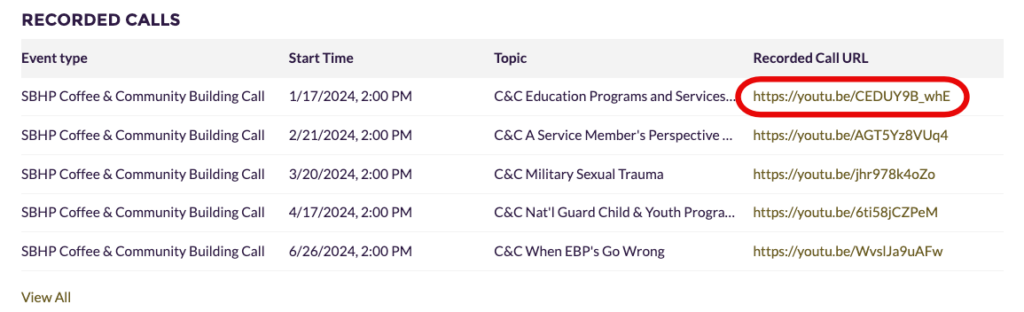
You can also view recordings of previously held Coffee & Community Building calls by clicking on the YouTube link on the right-hand side.
Colleague Chat
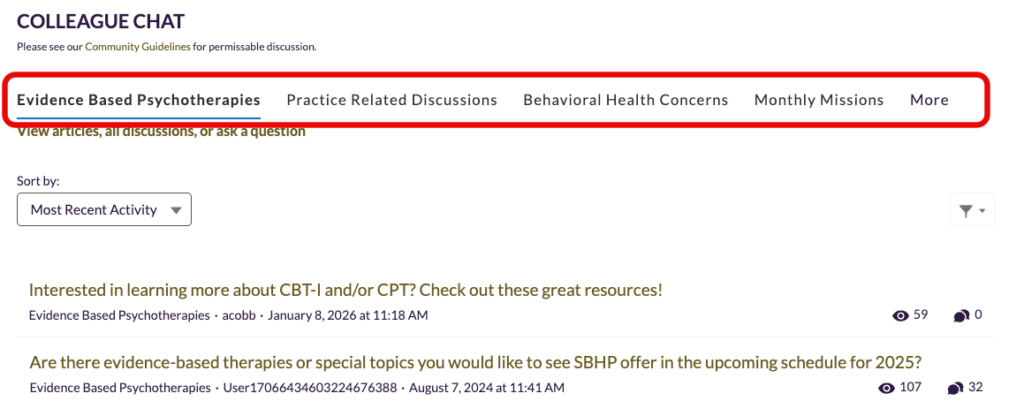
Scroll further down on the Community Hub and you will find the “Colleague Chat” section. There are four different tabs within the Colleague Chat: Evidence-Based Psychotherapies, Practice Related Discussions, Behavioral Health Concerns, and Miscellaneous (under the “More” button). Directory Providers and SBHP staff members are able to ask or answer questions.
Asking a Question
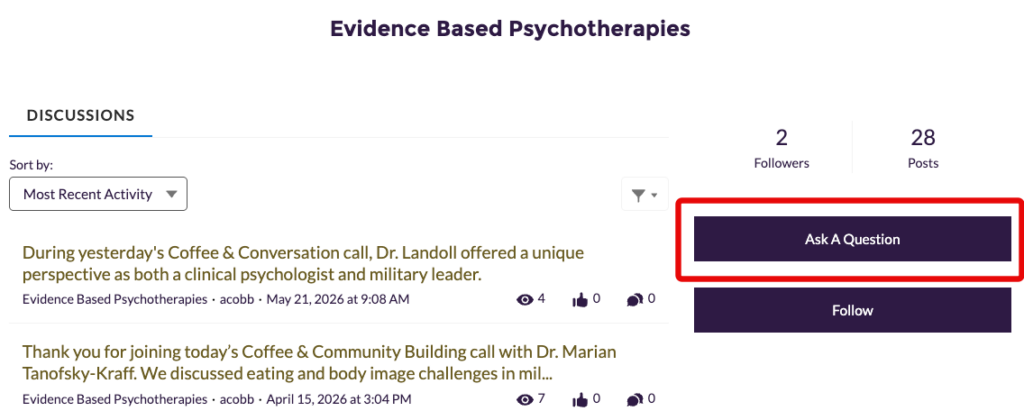
To ask a question, first click on the tab of your desired topic, then click on View articles, all discussions, or ask a question.

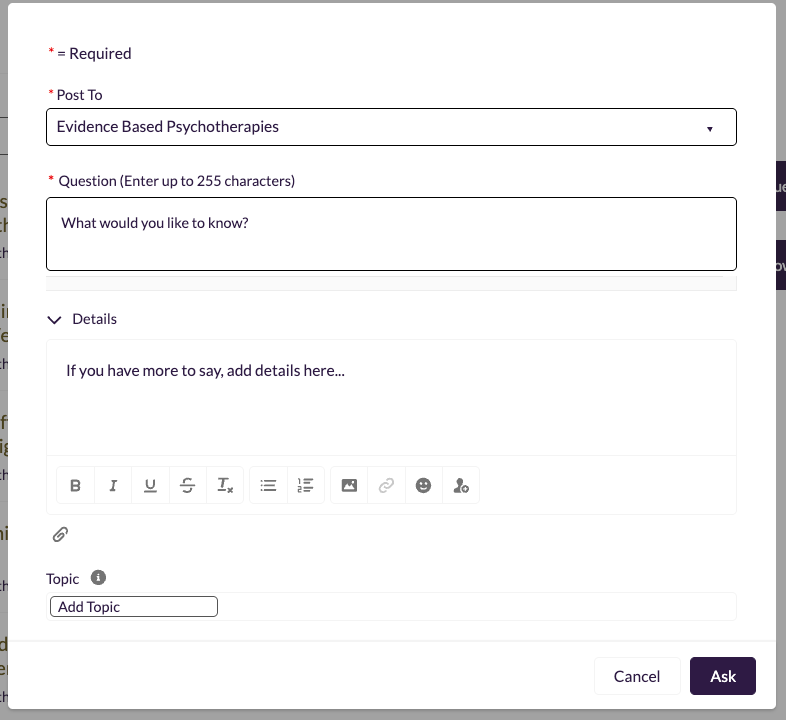
On the right, click on Ask a Question, then write your question in the prompt. To add more details, such as links and attachments, click the arrow to the left of Details. When you are finished, click Ask to post your question.
Participating in Discussions
Liking Posts and Comments
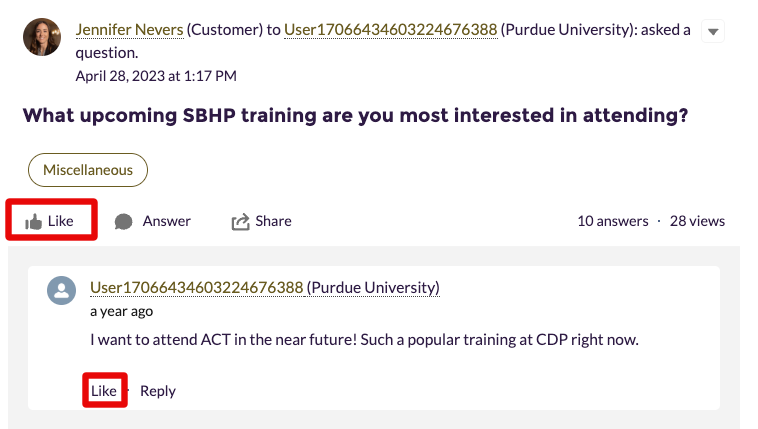
Click on a discussion post title to view the full post and any comments others have made. You can Like a post as well as comments on the post. For discussion threads with multiple answers/responses, you can also click on Select as Best if you really like someone’s comment. This will bring that comment to the top of the discussion thread for others to see.
Replying to Posts/Comments
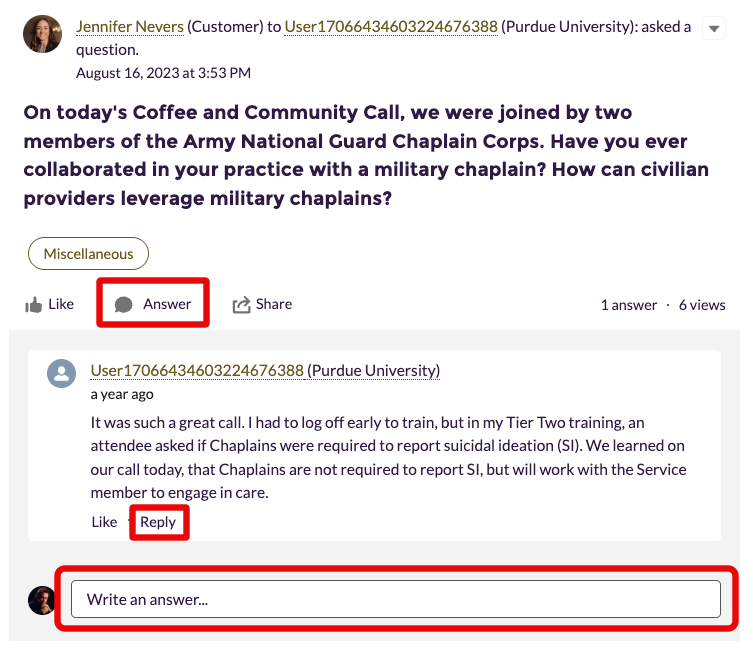
When viewing a post, you can reply to the original post as well as to comments other people have made to the post. To reply to the original post in a thread, click on Answer or scroll to the bottom and click on Write an answer… to begin your response. To reply to a comment in the thread, simply click on Reply at the bottom of the comment and type your response.
Following Topics
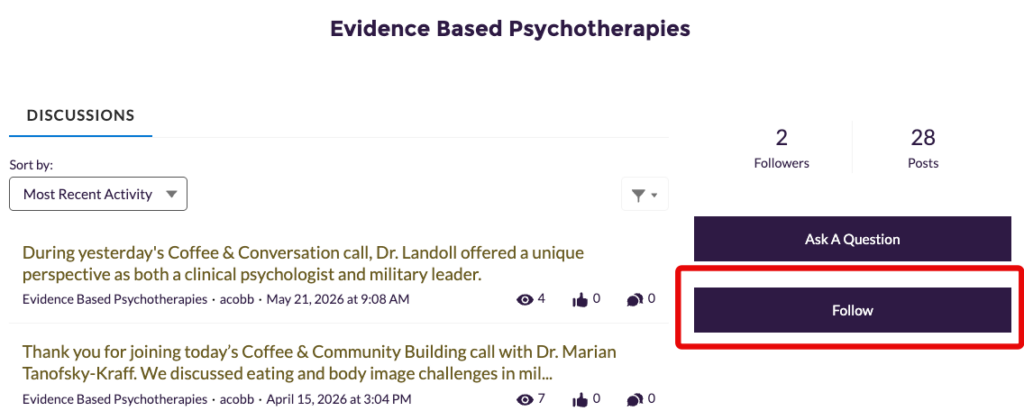
You can choose to Follow topics to be notified via email when new discussions are posted in that topic. In the Colleague Chat section of the Community Hub, select the topic you wish to follow, click on View articles, all discussions, or ask a question, then click on the Follow button on the right-hand side of the page.
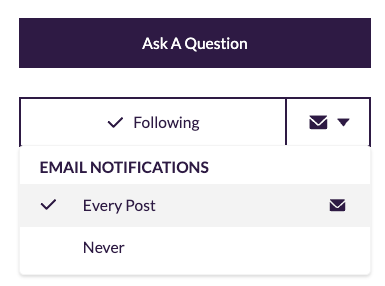
Once you are following a topic, click on the dropdown icon next to the Unfollow button and choose Every Post to receive an email when new posts are added.
Files & Resources
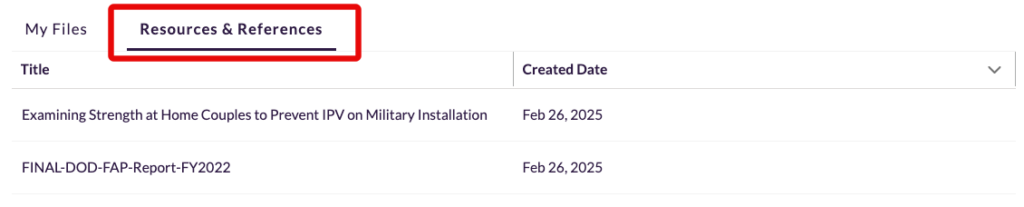
To search the resources in the Community Hub, scroll to the bottom of the page and click on Resources & References.
Any files you upload to posts and comments will show up under the My Files section.
