How to Update Practice Location(s)

Home » SBHP Provider Portal Knowledge Base » How to Update Practice Location(s)

To begin, log in to the Provider Portal. From the Portal welcome page, select “Directory Listing.”
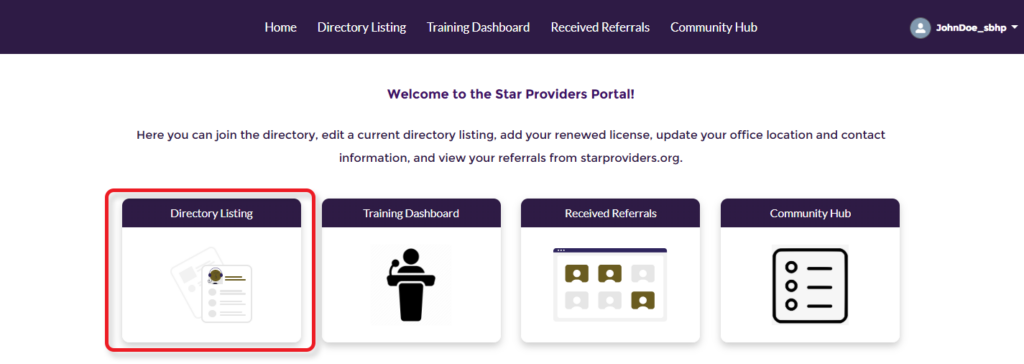
Copilot said: Star Providers Portal home page with the Directory Listing tile highlighted, showing where providers can begin managing practice locations and directory information.

Click on the “Locations & Insurance” tab along the top menu, then click on the Location Name for the location you wish to update
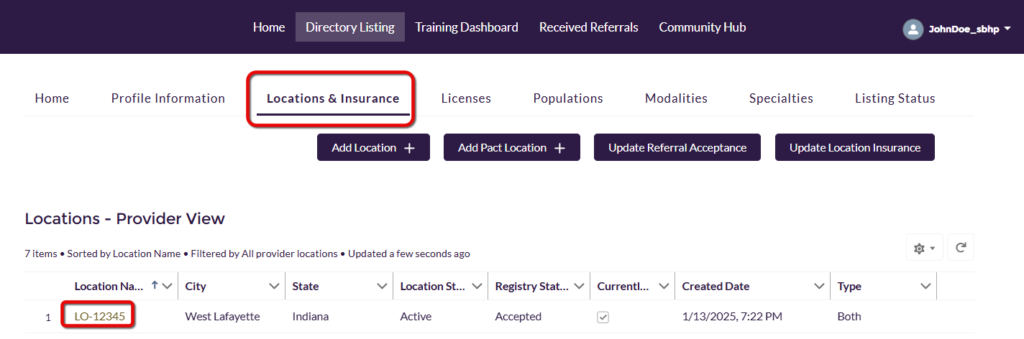
Directory Listing page with the Locations & Insurance tab highlighted and a practice location selected in the locations table, indicating where to choose a location to update.

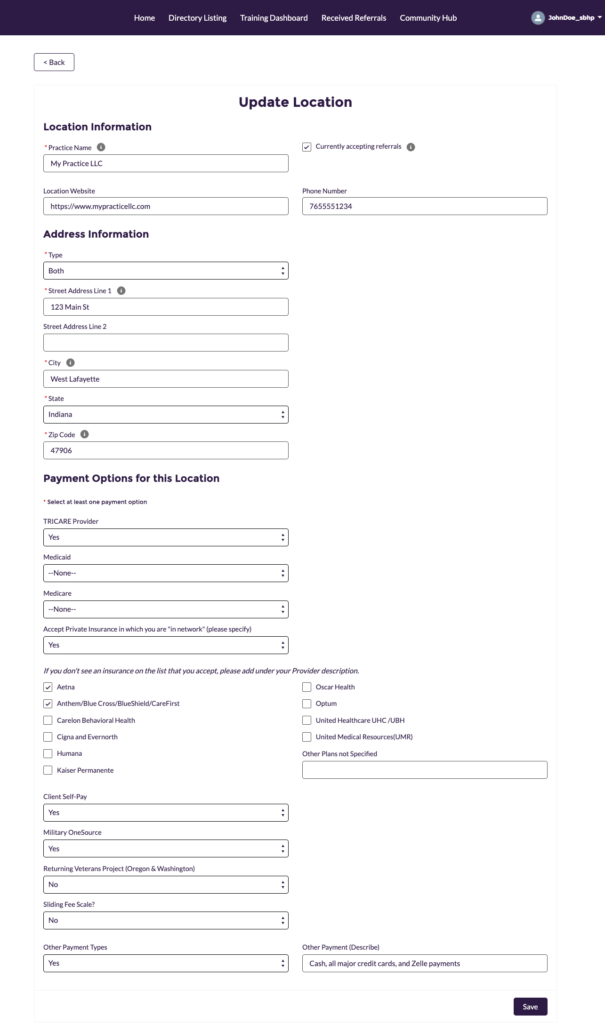
You can now make changes to everything from your practice name and address, to website, current status and payment options. Click on “Save” when​​ done.

Update Location form displaying editable fields for practice name, contact information, address, payment options, and insurance acceptance details for a selected practice location.