

How to View and Update Referrals
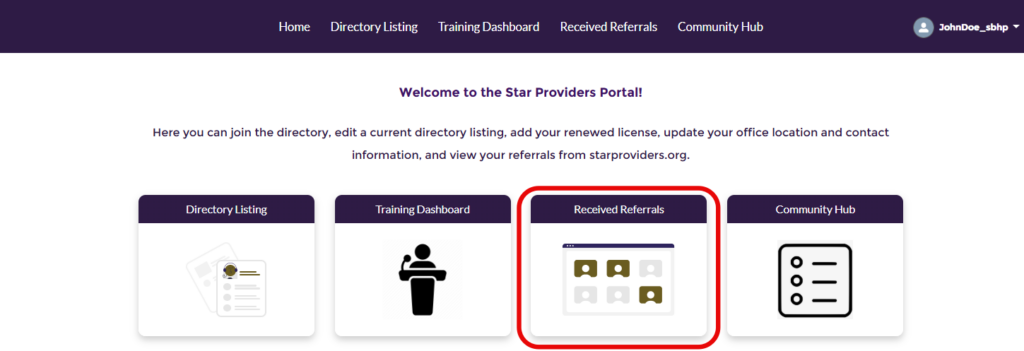
To begin, log in to the Provider Portal. From the Portal welcome page, select “Received Referrals.”
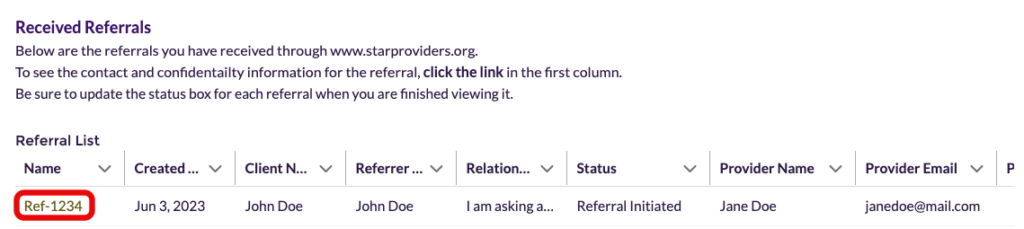
You will see a list of any referrals you have recieved. Click on the Ref-xxxx number to open the referral and see the full information provided.
When you click to view a referral, you will find several sections of information: Confidentiality, Client Information, Services Requested and Referrer Information.
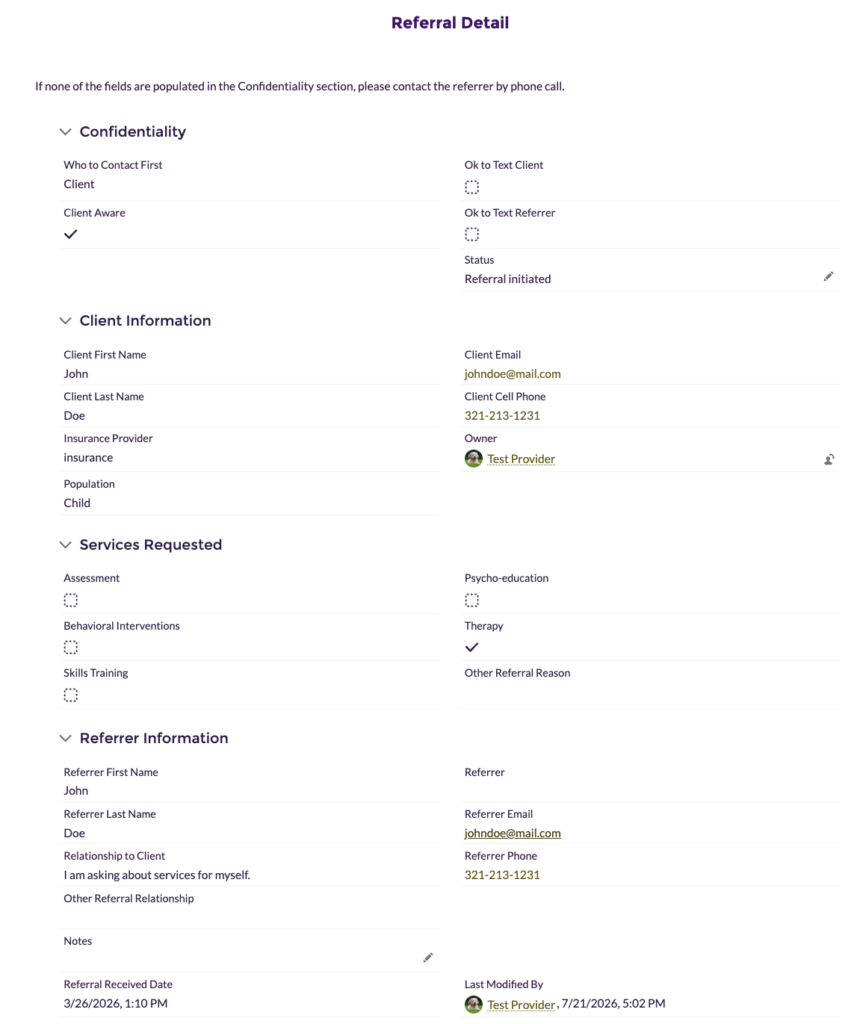
In the Confidentiality section, there is a Status field. By default, this field will show “Referral initiated”. To update the referral status, click the pencil icon to choose from a dropdown list.
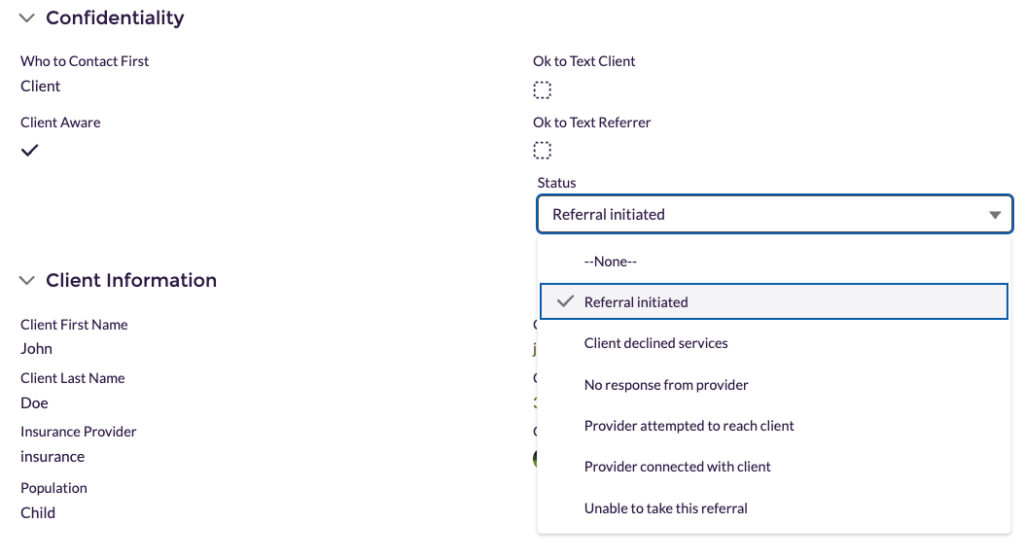
The status choices include:
- Referral initiated
- Client declined services
- Provider attempted to reach client
- Provider connected with client
- Unable to take this referral
Please update the status each time it changes. Be sure to click on the “Save” button when finished.