
How to Update License Information
To remain in good standing on the Star Providers directory, it is a requirement that providers update their license information whenever it is renewed or changed. Follow these instructions to update your record.
Getting Started
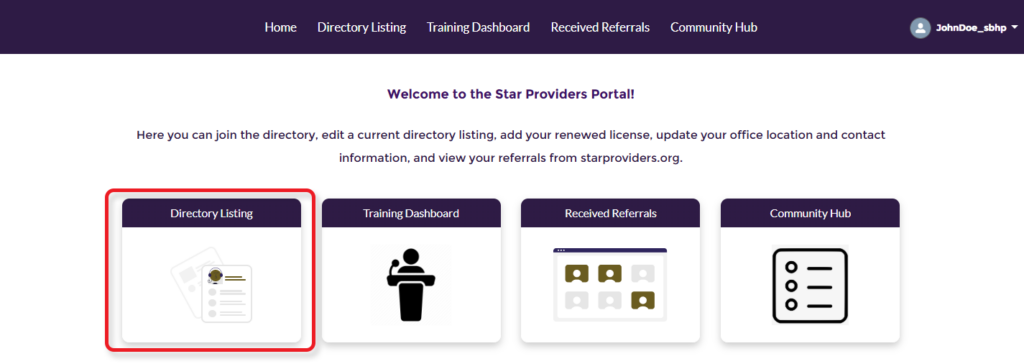
To begin, log in to the Provider Portal. From the Portal welcome page, select Directory Listing then click on Licenses in the top menu.

Updating/Renewing a License
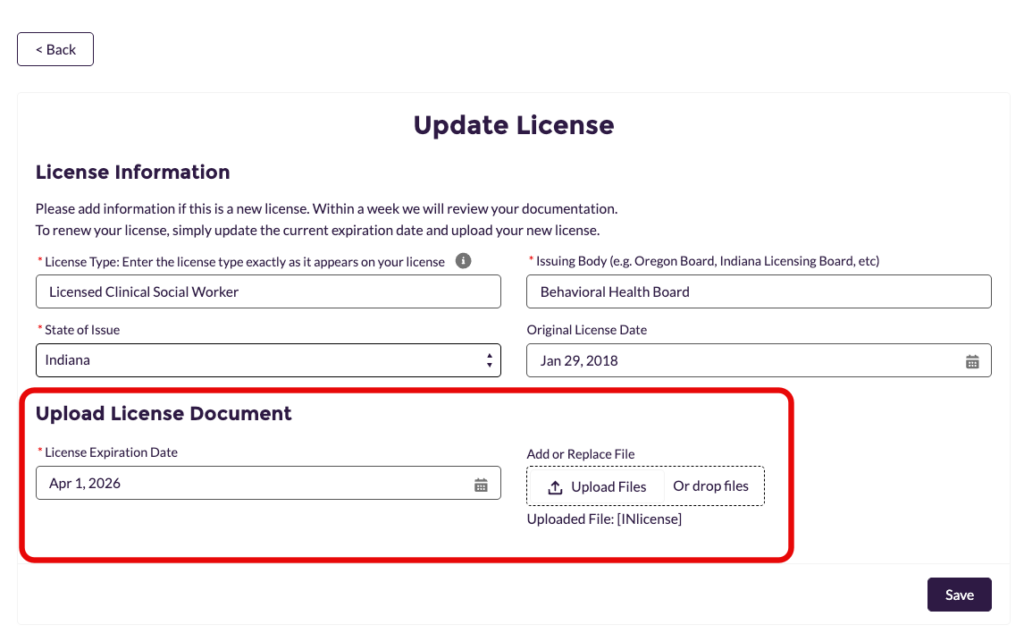
If you are renewing a license, do not add a new license. Simply click on the link next to the license you wish to update.

Upload your new license and enter the expiration date along with any other license details. Once completed, click “Save”.
Adding a New License
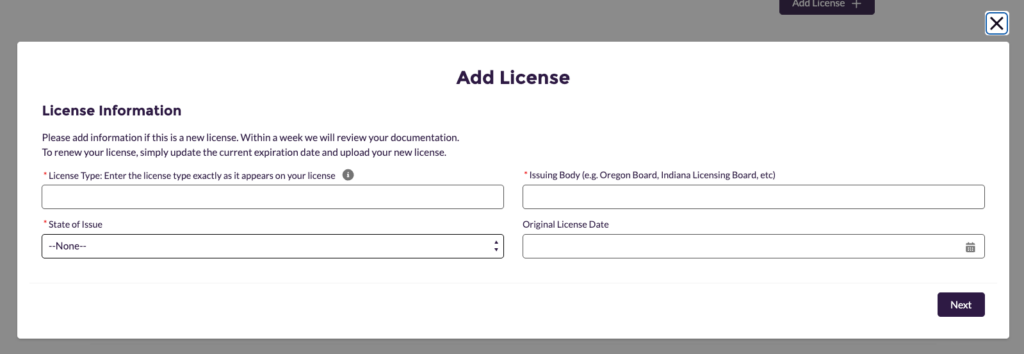
To add a new license, from the Licenses section, click on the Add License + button.
Type in the license type, issuing body, state of issue, and original license date (this is different than the license expiration date), then click Next.
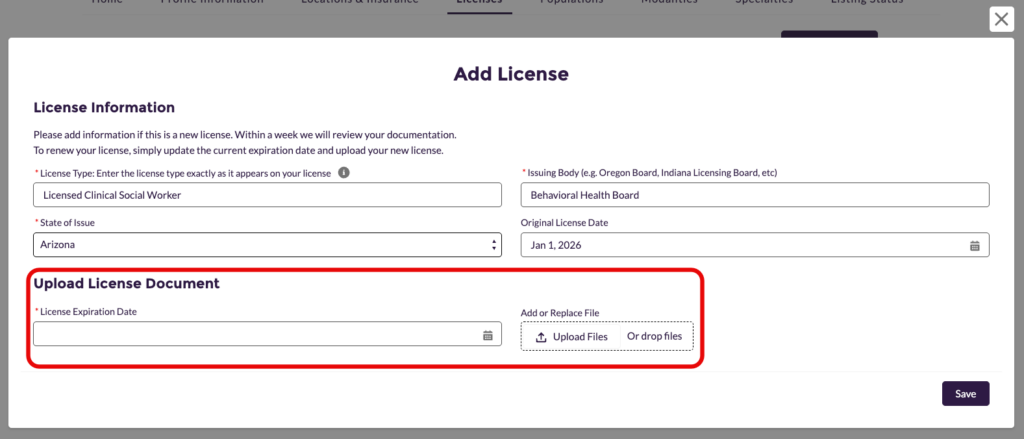
Select the date your license expires, upload your license, then click Save. Our team will then review your documentation within one week.